
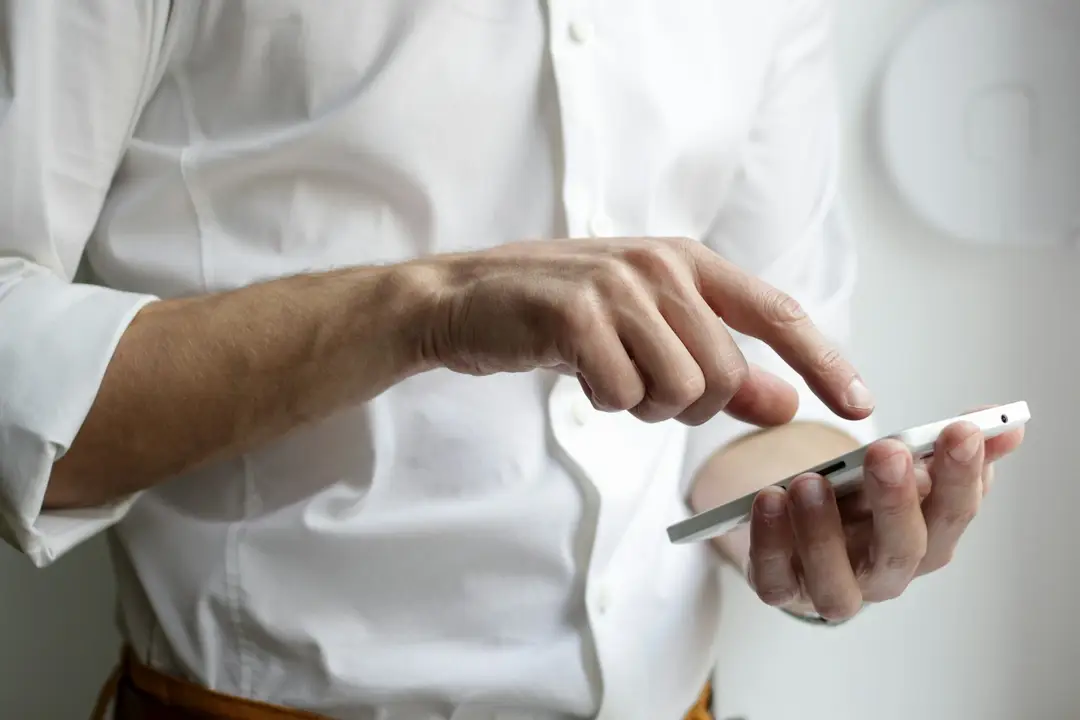
Start on the new phone: on an iPhone, open Settings > Cellular > Add eSIM, tap Transfer from Nearby iPhone and confirm on the old iPhone. Both phones need Bluetooth on and the same Apple Account.
Skip a prerequisite and you land with a shiny new phone and a number that won’t follow it.
How do you transfer an eSIM from an old iPhone to a new iPhone?
Use Transfer from Nearby iPhone, either on the setup screens of the new phone or afterward in Settings. Apple’s own words say it works when your carrier is on board: “If your carrier supports eSIM Quick Transfer, you can transfer the SIM from your previous iPhone to your new iPhone without contacting them.” (Apple Support, 2026)
During setup, the new iPhone asks about your phone number. Follow the onscreen prompts to transfer your physical SIM or eSIM (Apple Support, 2026). AT&T’s guide for the iPhone 17e describes the same moment: on the Update Your iPhone Automatically screen, tap Continue, then tap Transfer from iPhone, and follow the prompts on your other device.
Already past setup? Apple’s published steps for the Settings route, in Apple’s order:
- Open the Settings app on your new iPhone.
- Tap Cellular.
- Tap Set Up Cellular or Add eSIM.
- Choose a cellular plan to transfer from another iPhone. If you don’t see a list of numbers, tap Transfer From Nearby iPhone.
- Follow the instructions on your previous iPhone. To confirm, tap Transfer, or, if prompted for a verification code, enter the code that your new iPhone displays.
- Wait for the cellular plan to activate on your new iPhone. The cellular plan on your new iPhone deactivates your previous SIM when it activates.
- If a banner appears on your new iPhone that says Finish Setting Up Your Carrier’s Cellular Plan, tap it. You will be redirected to your carrier’s webpage to transfer your eSIM. If you need help, contact your carrier.
Source: Apple Support, “Set up eSIM on iPhone”
Seven steps, one phone in your hand. Then you’re back to the trip.
What do you need before you move an eSIM to a new phone?
Two unlocked phones, close together, with Bluetooth on and the same Apple Account signed in on both. Set that up first and the transfer stops being a guessing game.
Apple’s checklist, before you begin (Apple Support, 2026):
- You’re signed in to both devices with your Apple Account
- Your previous iPhone with the device passcode is unlocked
- Both devices are nearby with Bluetooth turned on
- Both devices are on iOS 18.4 or later
Installing a new Maya eSIM on the new phone has its own short list. You need a working Wi-Fi or cellular internet connection before you install, because the eSIM is verified and activated over that connection. The phone must be unlocked and eSIM-compatible, which means carrier unlocked. Check the Maya compatibility list to confirm your phone is eSIM ready.
What do you do when Transfer from Nearby iPhone doesn’t appear?
If your carrier doesn’t support eSIM Quick Transfer, the option isn’t offered. Use your carrier’s iOS app, scan the QR code the carrier gives you, or enter the activation details by hand under Settings > Cellular > Add eSIM. eSIM Quick Transfer is for carrier lines. A Maya eSIM stays on the device it was installed on: you can re-install it on that same device, but not on a different one. To move unused days to a new phone, contact Maya support, and a support agent can move the plan for you.
Buying a new Maya eSIM for the new phone instead? The install steps are short. On iOS, the automatic method starts in the Maya Mobile app: go to Home, select the eSIM, choose Installation Instructions, tap Install eSIM Now, and follow the on-screen prompts.
Need the manual activation code instead? Log in to your Maya Mobile account, click My eSIMs, click Install eSIM under the plan, then click Manual Activation Code on the pop-up. Copy the code and enter it on the device when prompted.
You can also find the code from the related eSIM in your account, through the eSIM, the Settings icon > Manage eSIM, or Manage eSIM. Open the Installation tab, where the QR code and manual activation code are both shown.
What happens to the eSIM on your old phone after the transfer?
For a carrier line moved with Quick Transfer, Apple’s answer is that the cellular plan on your new iPhone deactivates your previous SIM when it activates. A Maya eSIM doesn’t move that way: it stays on the old phone it was installed on.
When should you ask Maya Mobile for help moving your eSIM?
Ask Maya as soon as you change phones with unused days left on a Maya plan: the eSIM can’t be re-installed on a different device, and a support agent can help move your plan to the new one. Ask too when a new Maya eSIM won’t install. Our help center holds the installation and troubleshooting steps, and support is the next step when those don’t clear it.
If the eSIM is installed but you have no data, start with roaming and the data line. On iOS, open Settings > Cellular (it may be called Mobile or Mobile Service), select the eSIM plan, and make sure Turn On This Line and Roaming Data are both ON. Then tap Cellular Data and make sure the eSIM is selected. On Samsung, go to Settings > Connections > Mobile Networks and confirm Data Roaming is ON, then tap SIM Card Manager and select the eSIM plan for Mobile Data. On Google Pixel, go to Settings > Network and Internet > SIMs, select the eSIM plan, and enable Data Roaming and Mobile Data.
Android only: if there’s still no data connection, check the APN. Go to Settings > Mobile & Network (on Samsung: Settings > Connections > Mobile Networks), tap the eSIM plan, then Access Point Names, then Menu and New APN. Enter “globaldata” in the APN field, without quotes, and clear any username or password, since only the APN name is required. Then select the new APN and restart the device to reset the mobile network. Updating the APN is not required unless it’s specifically provided in your eSIM Activation Email.
Still stuck? Open a request through the help center, email [email protected], or start a live chat on maya.net. We’ll get back to you soon, and you can get back to your trip.
Which travel eSIM should you set up on your new phone before your next trip?
Each provider’s own published plan structure and pricing sits side by side here, so you can compare how each is sold before you install anything on the new phone. Every cell carries the company’s own published statement.
| Travel eSIM | How plans are sold | Unlimited plan allowance, as published |
|---|---|---|
| Maya Mobile | One Global eSIM for 165+ countries, unlimited data at a flat price by trip length: USD 9.99 for 3 days, USD 19.99 for 7 days, USD 27.99 for 14 days, USD 49.99 for 30 days | A daily high-speed data allowance (the Daily Quota) at up to 4G LTE or 5G where local networks offer it, reset every 24 hours; unlimited data at standard speed once the Daily Quota is used |
| Airalo | Per country, per region, or one global plan; priced in USD | Our unlimited data packages don’t have a fixed total data cap. However, to keep the network running fairly for everyone, when you use more than 3GB in a day, we’ll slow down (or “throttle”) your internet speed to 1 Mbps for the rest of that day. |
| Holafly | Per country, per region (Europe, Latin America, Cruise plans), and monthly global plans: Light, 25GB of data, $ 49.90USD/month; Unlimited, $ 64.90USD/month; Ultra, $ 90.95USD/month | Unlimited data means there is no fixed limit on the amount of data you can use. However, some network operators may temporarily reduce your speed after a certain amount of high-speed data usage. |
| Saily | Per country and per region, plus one global plan; by the gigabyte, unlimited, or both | The Unlimited plan gives you 5 GB per day at full 4G/5G speed, then keeps you online at 1 Mbps for the rest of the day — fast enough for navigation, messaging, and standard browsing. |
| Nomad | Per country, per region and global plans; by the gigabyte | How many GB of high-speed data you wish per day. You can continue to use your data at a throttled speed of 512kbps after you’ve used up your daily allocation. |
In the table, the Airalo, Holafly, Saily and Nomad cells use each company’s own wording or a brief summary of it, while the Maya Mobile cells use the wording from maya.net.
The old way is a SIM or plan for each country and an install screen you meet in the arrivals hall. A one-star Trustpilot review of aloSIM from August 13, 2026, by Osman D., reads: “No Russian manuals available. I purchased aloSIM for my family while they were traveling, but none of them could set up the eSIM. As an experienced Windows and Android user, I could have probably figured it out by trial and error, but my family couldn’t. It’s way too complicated with English-only instructions. Plus, after my payment successfully processed, the app still asked me to buy the plan again. # update since you are planning to add Russian instructions, I’ll give aloSIM another try. My family is heading to Turkey at the end of August, and if everything goes well, I’ll update my review to 5 stars.”
How Maya keeps one eSIM on your phone for every trip
Install one Maya eSIM and it stays on that phone permanently, with no need to delete or reinstall it between trips. For each trip you buy a new plan and go.
Pick 3, 7, 14 or 30 days, from USD 9.99. Every plan has unlimited data across 165+ countries at one flat price, the same in France as in Japan.
Need more days? Buy another plan from the Maya app. Auto Top-Up is opt-in only and off by default, so nothing renews unless you turn it on.
Mark gave Maya five stars on Trustpilot in September 2026: “Ive tried a number of travel eSim providers over recent years and Maya mobile are by far the best. It’s simple to choose the right esim, simple to install and activate it, and should you have any issues their support is very responsive and first class.”
One eSIM, one flat price, 165+ countries. New phone, same plan of attack.
FAQ
How do you move an eSIM between an iPhone and an Android phone?
Yes, if your carrier is supported. Apple lists the carriers for iPhone-to-Android transfers: USA: AT&T, FirstNet, T-Mobile, Verizon; Japan: KDDI; Germany: DT-DE; France: SFR; and UK: EE (Apple Support, 2026). From an iPhone, go to Settings > Cellular, tap Transfer eSIM under Transfer to Android, and scan the QR code on the Android device; once the transfer completes, the number no longer works on the iPhone. Going the other way, tap Set Up Cellular or Add eSIM on the iPhone, tap Transfer from Android, and scan the iPhone’s QR code with the Android camera; the SIM on the Android deactivates afterward (Apple Support, Transfer your eSIM from Android to iPhone).
How do you check that your new phone supports eSIM?
Open the Maya compatible devices list at maya.net/esim-compatible-devices. It includes iPhones from the iPhone XR/XS series through the iPhone 17 series, including iPhone Air, SE 2 (2020) and SE 3 (2022), and Google Pixel models from the Pixel 3 up to the Pixel 10 Pro. A device that isn’t on the list won’t work with Maya Mobile eSIM packages.
How do you set up a Maya eSIM on a new phone?
For a new Maya eSIM, choose the QR code method in the Maya Mobile app, scan the QR code with the device you’re installing on, tap Add eSIM or Add Cellular Plan when notified, and follow the on-screen prompts on iOS. Maya marks this method as Recommended. Done! The new phone is ready.
How do you keep a Maya plan running if you change phones during a trip?
Contact Maya support. Each eSIM can be installed on only one device, and it can’t be re-installed on a different one. If you have unused days left and need to move your plan to the new phone, a support agent can help you with that.
How do you keep your home number and a travel eSIM on the same phone?
Maya runs alongside your existing SIM, with no SIM removal needed, and your home number and carrier plan stay unchanged. You can keep sending and receiving calls and texts on that number. On an iPhone, open Settings > Cellular, turn on both lines, tap Cellular Data and pick the Maya line, then tap Default Voice Line and pick your primary line (Apple’s Dual SIM steps). Use the Maya line for data only.
Maya installs once on your phone and covers 165+ countries with unlimited data at a flat price by trip length, from USD 9.99.